
Patient Drawer
The Patient Drawer can be accessed from any screen. To open the drawer, click the vertical dotted line on the left side of the page. The drawer will open to the patient list where users can choose or enter a patient. Clicking the Patient Module icon from the bottom of the screen will also take the user to the patient listing if no patient charts are open.
When viewing the patient list, users can switch between sites (based on permission), filter by “all patients” or “my patients”, by patient status and by program.

Users can search for a patient at the top of the screen by entering the patient’s first or last name (i.e. typing John in the first name field will remove ALL patients from view except those with the first name John) or Patient ID.
Users can also search for patients by status.
- Click in the status field to choose the desired status and only the patients with that status will appear.
- Click on the patient’s name to bring up their record.
- If a new patient needs to be entered, enter first and last name then click the + (located on the right).
Patient Dashboard
The dashboard for the Patient Module (visible once a patient has been chosen/entered) can be set up with patient-specific widgets (found in the widget drawer on the right side of the screen) and chart sections, such as care plans, meds, etc (found along the bottom of the screen).Click the vertical dotted line on the right to open the widget drawer. Drag any desired widget to the dashboard.Drag the desired section of the chart to the dashboard.
Patient Status Definitions
Patient status displays in the header as well as in the patient listing.
- Referred-Missing info (R*): Any referral that has been entered without answering all questions required at time of referral will show status of “Referral-missing info” (R*).To change status to “referral”, answer the required question(s). While a “Referral-missing info”, the “Reject” button will display.Once the patient is in “Referral” status, the “Reject” and “Admit” buttons will display.
- Referred (R): Patient that has not yet been admitted. To admit, click the “Admit” button in the header. To reject, click the “Reject” button and enter a reason.
- Rejected Referral (RR): Patient that has been rejected (referred but not admitted).
- Admitted-Missing info (A*): Admission Date has been entered but required questions have been left unanswered. Once required questions have been answered, the status will change to “Admitted”.
- Admitted (A): Patient that has all information that is required at time of admission. “Discharge“ button will display.
- Discharged (DD-discharged by death or DA-discharged alive): Click “Discharge” button in header. Enter date/time of discharge as well as “Reason”.If discharge reason is a “live “ discharge, the “Refer” button will display.
Patient Header

Once a patient is added or selected from the patient list, the patient’s header will display at the top of the page. The patient header contains view only information. As a user works through a patient’s chart, certain information will display in the header.
Underlined text within the patient header can be clicked on to display more information.
Clicking twice will take user to the area in the chart where that information is entered and can be edited. For example, clicking “Diagnosis” in the header, first displays all diagnoses already entered. Clicking again will open the “Condition” tab where additional diagnosis would be entered.
Patient Header Drawer
Just below the header is a drawer (horizontal dotted line).When the drawer is open, several tabs are visible. Users will enter patient information in this area.Tabs are accessible only if the user has permission. Some users may have “view only” privileges; others may be able to enter/edit information.

Demographics Tab
Most often, users will start with the Demographic tab. The tab key on a device lets the user move from field to field.A red field indicated a required question. (Required questions can be set up in ADMIN/Required Fields. See instructions for details.)
Most fields are self-explanatory, but a few have unique features:
- Zip Code: The program is tied to a database of zip codes from the U.S., Puerto Rico and Guam.
- Phone, Sex, Marital Status, Race, Ethnicity: these fields have preset answers (i.e. in “Sex” enter “M” and male will come up)
- Religion, Church, Pharmacy, DME: these fields are pre-populated with information from the Admin Module. Click + to add an option that is not on the list (depending on permission level).
- Do Not Resuscitate:Clicking “Yes” will cause a green bar to show above the patient’s picture.Clicking “No” will cause a red bar to show.
- POA—field will be filled in with a “caregiver” who is given the role of POA (under Caregiver tab).
- NOTE: certain information populates in the header; the header will continue to fill in as user enters information under the various tabs.
Diagnosis Tab
Click the Diagnosis tab. Here users can:
- Identify Patient’s physical and/or emotional condition—enter on a scale of 1-10.
- Enter whether pt/family are aware of diagnosis or prognosis.
- Add diagnosis by entering ICD10 code or by beginning to type in the “Description” field after entering “effective date”. Once the desired diagnosis is in view, click it. Click + to add.
The first diagnosis entered will display as “primary” diagnosis in the header.Once multiple diagnoses are in the file, drag the diagnosis to change the order. First click on the diagnosis, then hover the cursor over the row number. When cursor changes from an arrow to a triangle, you are ready to drag.Only the primary diagnosis displays in the header unless you click into the field.
If a patient’s primary diagnosis changes, add the new primary diagnosis with the new effective date.If this creates a duplicate, delete the duplicate using the trash can icon on the right.
Allergy Tab
Click the Allergy tab. Allergies default to “blank” until “yes”,“no” or “unknown” is answered.
- Clicking “no” will cause NKA to show in the header.
- Clicking “yes” will open a field where users can enter in an allergy.Enter “Type” (food, drug, etc).Enter reaction if applicable. Note that not all allergies display in the header.Underlined indicates that there is more information. Click to display.
Assignments Tab
Click the Assignments tab. The roles displayed need to have been set up in ADMIN/Caregiver Role Assignments.
Click in the “Name” field to see a list of persons with that “Role” at the patient’s “Site”. Choose the staff member to be assigned to the patient.NOTE: If the patient has been assigned to a “Team”, only the staff who are assigned to that team will show in the drop-down. Make the team assignments in ADMIN/Persons.
If only one staff member of a certain discipline is assigned to that team, the staff members name will populate automatically.For example, there is only one SW on the “blue team”.When a patient is assigned to the blue team, under “Assignments”, the SW’s name will automatically populate.
If patient has not been assigned to a team, when clicking in the drop-down under “Assignments” will allow selection from a list of all active staff with that role.
Search by entering a name in the first or last name field. Click + to add that staff member to the patient assignment. NOTE: If the staff member has been entered into the program but is not displaying on the list, the set-up may be incorrect in the “Admin Module”.
Caregiver Tab
Click the Caregiver tab.
- Click + to add a caregiver.
- Enter Caregiver name, address, zip code, sex, and relationship (required).
- Click + to add. NOTE that the + is yellow until such time as the “relationship” is entered.Click the blue + to add.Click the Ö.
- Once the Caregiver is added, there will be an additional field called “Relationship Type”. Each caregiver defaults to “Caregiver”.Add or change this by clicking the +.Other types such as POA, Fiduciary, etc are available. This allows differentiation between caregivers who actually care for patient and who may be non-caregivers.
- Add as many caregivers as desired.
- To re-order (ie make another the primary caregiver), drag the desired caregiver to the desired rank by dragging and dropping the caregiver into the correct place in the list. Only the primary (Rank#1) caregiver displays in the header.
- To edit information within this screen, click “gear” for details/delete.
When a patient dies, user will be prompted to check which caregivers should be included in bereavement, which should be included in CAHPS, and prompted to complete grief risk, gender, etc.
Insurance Tab
Under the “Insurance Tab, there are 2 sections:
Insurance Carrier Listing:
- List of all applicable carriers
- Use gear to see details or view/enter elections
- Able to enter F2F visit
- Mark pay source for Room and Board
- Enter Authorization number and effective date range
Coverage Set Grid:
- Effective date of primary/secondary/etc for each carrier
- Eligibility checks
- Add/Edit coverage
- Delete a coverage
Insurance Carrier Listing
- Click in “Payer” field.The list of all “favorite” carriers will display, with Medicare, Self Pay and Free Care at the top of the list.Select the appropriate choice.NOTE: If the desired carrier is not on the list, it must be added in ADMIN/Insurance Carriers.

- Click in “Insured” to add the insured if other than patient.The insured must first be entered under the “Caregiver” tab.

- Enter policy number
- Click + to add the record.
- Add additional insurances, including payer for room and board as applicable, in the same manner.

- Mark pay source for R&B by marking the checkbox

- Once carrier has been made primary/secondary (see below) AND the patient has been admitted, F2F date/provider, certification signature and verbal dates can be entered using the gear at the end of the Carrier row.
Certification Signatures and Face to Face:
Completed under the ‘Insurance” tab, by clicking the gear next to the insurance carrier, and choosing “Elections”.Enter the date of the verbal/written certification.
Face to Face:
- If using HB-Clinical, and the Medical Director or Nurse Practitioner completes the face to face questions within certain forms, the information will mark the visit in PIM as a F2F.If this has occurred, a checkmark will be seen in the certification grid. Such as:

- If a F2F visit has been hand-keyed into PIM via the Interaction Widget and the question in the widget “is this a face to face for purpose of certifying election” was answered “yes”, the checkmark will be marked in the certification grid (as seen in the screen shot above).
- Hand-key the F2F directly via the certification window.To do this:
- Click into the checkbox “F2F”.
- A window will open (see below).
- Enter the physician/NP performing the F2F, along with date (time if desired).

Additional options under the gear are:
- Details: provides details of the carrier, including type of claim, whether signatures are required on certifications for billing, etc. These are all set up in ADMIN/Insurance Carriers.See Elections under “Details” tab as well.
- Authorization:Button is available for any carrier set up to require prior authorization.Click to enter the PA number and effective dates.
Coverage Set Grid
Once all carriers have been listed, coverage must be set by entering an effective date and the ranking of carrier(s). To do this, go to the Coverage Set Grid (window below the insurance listing) and click the + icon.
Clicking the +
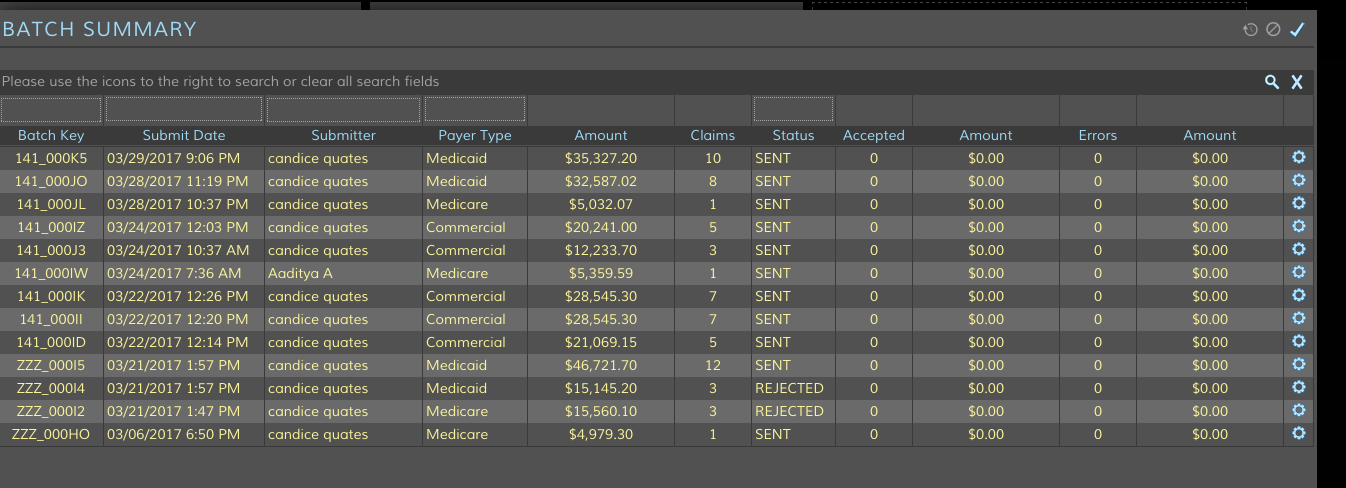
Brings up the Coverage Window:

Enter the effective date. (NOTE: for new patients, effective date is defaulted to referral date.) Drag/drop each carrier to the desired ranking.

Medicare was dragged down to 1st position; Medicaid was placed in 2nd position.
Once coverage has been entered, the carrier(s) will display in the header.
Each change in coverage results in a line item.See screen shot below.

Eligibility
In order to be able to do eligibility checks, the program and the worker must be set up properly.See Tip Sheet “Eligibility and SoC Set up”
Check elegibility by clicking the “E” icon (see screen shot below).

Once the Eligibility Float opens, click “check eligibility”.The eligibility information will display on the screen.This information is imported from DDE.
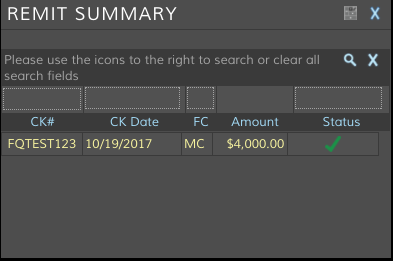
Enter number of days remaining at the higher rate for SIA payments if patient has had prior hospice benefits.
- Patients having no prior benefits will automatically have 60days at higher rate.
- For patients that have been on this hospice before, the program will calculate the appropriate number of high/low days as well as the certification period.
- REVOKE: system will auto-populate certs IF the patient revokes from YOUR hospice and was readmitted.
- REVOKE:if patient revoked from another hospice, enter the information received from eligibility into the fields (Date of Prior Hospice Discharge, Last Election, etc). Once accepted, patient will show in the correct cert period AND claim will show correct number of HIGH and/or LOW days (if Medicare or Medicaid)
- TRANSFERRED = user ALWAYS needs to manually enter the remaining days at higher rate, as well as start of the current period, cert period, etc.
- Once user resets the information for Revoke or Transfer (such as start date of election, etc,) click “Close”. User will get a validation question which reminds/warns that clicking OK will cause the election period to calculate based on the information entered. See below:
Corrections: Primary /Secondary/Tertiary coverage can be corrected as necessary by clicking the edit (pencil icon) to change the ranking of a carrier.Click the pencil icon; the window will open with current effective date and rankings. Make changes as needed.NOTE:date cannot be modified.If another carrier becomes “primary”, click the + and enter a new effective date and slide the appropriate carrier into the 1stposition.If an error was made, delete the coverage.
Adding a Coverage:Enter the carrier under “Insurance“ tab if not already listed.Click the + in the Coverage Set Grid.All carriers will be listed in the top portion of the window. Enter new effective date and drag the new primary/secondary carriers into the ranking portion of the window.
Delete a Coverage: Click pencil icon to “edit”. Click the trash can next to the coverage.
Episodes: Each discharge and re-referral/admission will display separately as an episode.Previous episode dates can be corrected and/or payers added without disturbance of current episode.
In the example below, current episode is shown at the top of the grid in ‘expanded” format, while previous episode shows referral, admit and discharge dates but is “collapsed”.To expand, click the arrow on the left end of the row.

IMPORTANT NOTE – Any time a coverage is added/updated/deleted, elections and NOE may be affected.Make sure to double check before you hit the ‘check mark’.
It is recommended that prior hospice configuration be checked (done by clicking the blue E icon) when starting a new episode. This ensures the elections/NOEs/days remaining are calculated correctly.
Levels and Locations of Care Changes
Adding a Level/Location of Care:
Click the +, enter effective date, Choose GIP, Respite, Continuous Care or Routine. Enter facility if applicable.Click in the field and begin typing to choose the facility.Click OK to accept.
Changing a Level/Location of Care:
If changing a LOC, click the gear next to the Level/Location that needs to be modified.NOTE: the date will not be editable.(If a new date needs to be entered, click the +.)Choose GIP, Respite, Continuous Care or Routine. Enter facility if applicable.Click in the field and begin typing to choose the facility.Click OK to accept.
For GIP and Respite, an “end date” field is available. Enter if known (OK to leave blank). Click the + to accept.When patient leaves a level or location of care, enter new “effective date” and the new level/location of care.
NOTE: If an end date is entered, on the next day, the system will place patient back at “routine at home”.
For patients at a nursing home with billable room and board, first set up the facility (in ADMIN/Facilities) to accept “Room and Board”.Under the History tab, enter LOC (routine), the facility (begin typing to get a list), yes/no to R&B.If applicable, enter “Rate” and“Patient Portion” and whether the Patient Portion charges are “daily” or “monthly”. Choose the carrier.Note that the carrier for R&B must first be entered under the “Insurance” tab.

Corrections: Made by clicking the gear at the end of any line item. Information already entered will display; make corrections to Effective Date, Facility, R&B charge, etc.

Episodes: For patients that are discharged and readmitted, their Levels/Locations of care are maintained in separate episodes. Prior episode(s) Level/Location of care may be edited/corrected using the gear.
In the example below, the prior episode is shown in the bottom of the grid; current episode at the top (both are expanded). Collapse by clicking the arrow on the left end. 
Physician Changes
To change Attending Physician, click the +, enter the effective date, choose the new Attending Physician, click OK. The new Attending Physician will display on the Demographic Tab as well as in the header. If the patient was recently admitted and the date of verbal or written certification has NOT been entered into the certification record, the new Attending’s name will populate the certification record as well.
Corrections: Made by clicking the gear at the end of each line item.
Episodes: For patients that are discharged and readmitted, the dates for each change in Attending physician is maintained per episode and may be edited/changed using the gear to edit or + to add.
History Tab
The History Tab will display ALL changes made.It is “view” only. Changes will be denoted by a white dot.
Face Sheet
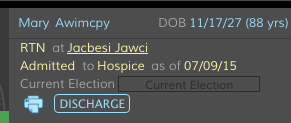
Print a face sheet by clicking the “printer” icon just below the patient’s name in the header.
Face Sheet will display all data entered into each of the tabs.Face sheet will also show a map and turn-by-turn directions calculated via GPS from office address to patient’s home.