
Click here for downloadable PDF.
INDEX
A. General Information
1. When a Surveyor Shows Up, Let mumms Know Immediately:
Log into to the Customer Support Portal and create a request. Put the word “URGENT” in the subject line. This is the best way to contact us, as the issue is automatically entered into our support system. If you need to speak with someone, please call 504-525-0620.
2. Helpful Reports
The surveyor will likely want to see a listing of employees and patients. The following reports may be helpful when a surveyor arrives. Be sure to pull and view these reports before your surveyor arrives so you will be familiar with what you are providing.
Login to PIM>Reports>Miscellaneous>Surveyor. This is a group of reports commonly requested of a hospice during a survey.
- Contact List – Gives you a listing of providers, employees, and volunteers. It allows you to filter for only the roles you wish to pull. It does provide contact information for all, but if downloaded in CSV format, this can easily be sorted and manipulated to meet your needs.
- Contact List by Date – This is the same report as listed above but adds a Date Range option.
- Surveyor Unduplicated Patient Listing**- Listing of unduplicated patients by site and date range. Pull by patient status of admitted, discharged, or served within the chosen date range. Information pulled nightly, will be accurate through prior day.
- Supervisory Visit Report – Listing of HHA and LPN supervisory visits by patient. Sort by “Patient Last Name” then by “Visit Date” for most effective viewing.
- Visit Summary by Month-Volunteers – Provides number and hours of volunteer visits for a time period.
Note: There are other reports in the “Surveyor” area in addition to those above. Other reports from the REPORT Module will be helpful during a survey as well. mumms staff can assist upon request.
3. Surveyor Login
You want to be prepared for your surveyor to log in online to review charts. Before a surveyor arrives, you will build a generic “surveyor” in PIM.
To Add a Surveyor:
- Start by having your IT department create an email address for the surveyor (i.e. surveyor@yourhospice.com) to use as a login during your survey. Make sure this email is accessible by whoever is setting up the login for you. You may also use Gmail (or some similar email vendor, as this email will only be used to set the password and/or reset).
- In PIM>Admin>People & Places>Persons, add a new person with first name Surveyor, last name Surveyor and role of “Surveyor” (which is system-defined).
- Set the Hummingbird User to Yes with type of Hospice User.
- Set the Hospice Employee to Yes with Employee Type of Contractor with the start date of today.
- Using the locations tab at the top, ensure all necessary locations are selected (as applicable). Multi-site locations can make the internal decision to add multiple Surveyor email addresses and logins, as desired.
- Click the “Send Password” button to send a sign-on access request to the email entered.
- Click the checkmark to close the window.
- From the registry email, set a password that can be easily remembered by your organization. This password can be changed by you at any time by resending the password at in time in PIM. (refer to your agency HIPAA policies). This email can only be used one time so there is no danger or replication.
Set up “Assignments” to Limit Access:
To allow the Surveyor to be limited to only the patients he/she has requested to review:
- Make “Surveyor” assignable under “Role Assignments”. In the floating window, select the location to edit and choose “Details” from the gear to the right. Find Surveyor in the Available roles and drag and drop to Assigned. Click the checkmark to close each window.
- Assign each patient that the surveyor will be reviewing to the “Surveyor” in PATIENTS/Assignments.
- In the Hummingbird Clinical application, the surveyor will have “Read Only Access’ to view only the specifically assigned patients.
- In PIM, the surveyor will see only the “My Patients” tab and will have access to only the patients that have been assigned.
- When your survey has been completed, clear the Surveyor’s assigned patients from the Surveyor list, so it’s Ready for your next use by adding an End Date to those specific patient assignments.
When the Surveyor Arrives:
- Take the list of requested patient charts they give you to prepare.
- Log in to PIM>Patient area
- Working through the patients go to the Assignments tab and assign each patient they want to view chart for. This will allow them access only to the requested patient charts in Mobile.
- Provide the username and password you created to the surveyor to log in to HBC and PIM and provide basic navigation instructions.
- After the survey is over, you may remove the surveyor assigned to the patients until the next survey!
B. Records Requested for Review
We have a variety of options to print charts. The print chart function is available in both the Admin Console and in HBC by the worker when Online.
1. From the Admin Console
To the right of the screen, click on View Patient’s History.
A second tab will open in your browser.

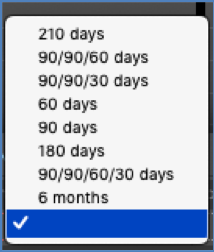
Display options for viewing the chart:

Choose:
- Layout
- Date Range
- Workers
- Discipline
- View (Expanded or Collapsed)
- To display demographic header (this will display the demographic header on page 1 when printing)
Once all 6 criteria have been selected, click the submit button.
The chart will load.
Expanded chart:
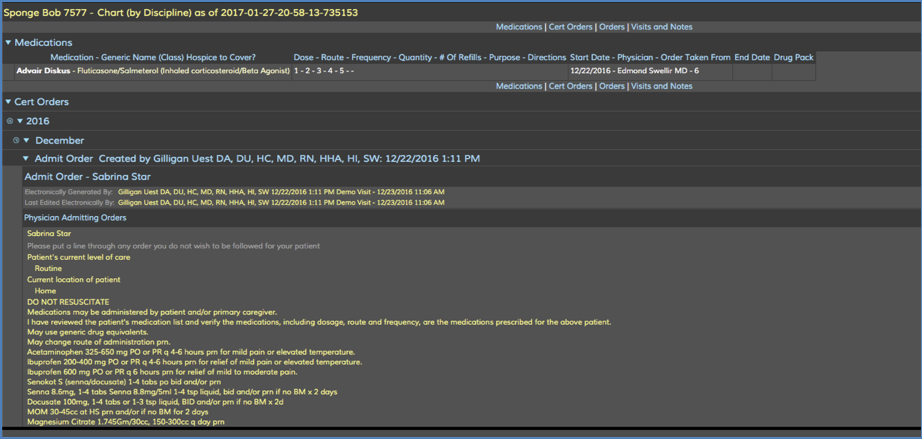
Displays all the details of the visit records/care plan problems/medications/orders and notes.
Collapsed chart:
Displays a summary of the items in the chart.
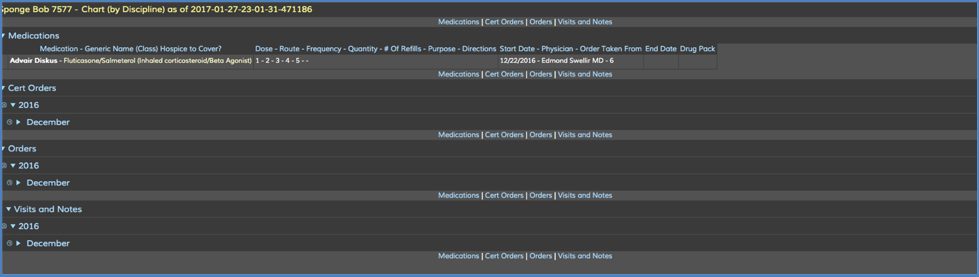
Expanding a division:
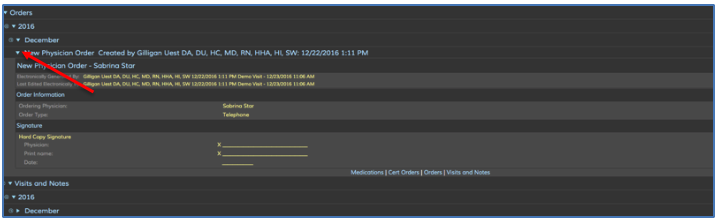
Ability to expand any item by clicking on the arrow to the right.
To preview patient history in PDF format, use the Print function in the browser, or Users can easily print charts from the Chart App by pressing “control + p” (Windows) or “command + p” (OSX).
The normal printing dialog screen will appear, print as directed.
*** Note: ***If the chart is too large to view in the program, the worker will see a message displayed on the screen. “This chart may take some time to generate. You will receive an email containing a link to the chart when it is ready.”
The link to the chart will be sent in an email to the worker and will look like the one below.
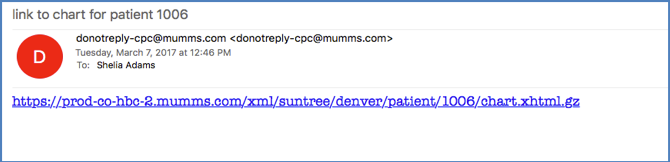
This link must be opened using Firefox.
2. From Hummingbird Clinical (HBC)
In the top toolbar, click on the icon to view the entire patient chart.

Clicking on this icon will display the different options for viewing an entire chart.
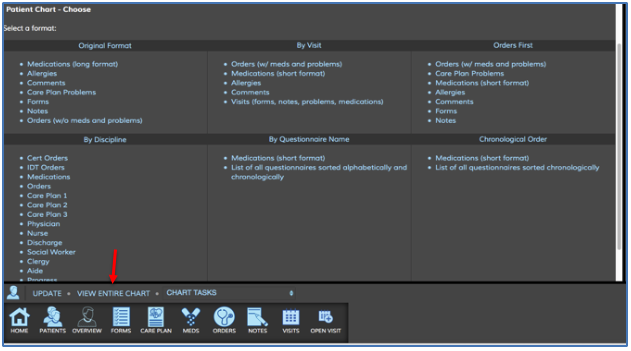
Click on View Entire Chart in the taskbar.

Once selecting this task, the program will function just as it does in the Admin Console above.
Please review H6.1 “Print Chart App” for more detail.
a. If You Have Any Issues Viewing or Printing Historical Data
First, check to see if the chart is Super Archived. Super archived charts will need to be unarchived to see all documentation.
b. Unarchiving Records Yourself
If a chart has been archived, it will be listed as “Yes” or “Super” on the HBC Patients listing screen under the Archived column.
Super Archived charts will need to be unarchived before auditing or printing for access to all documentation.
c. From HBC Admin Console
- Select the patient whose chart you wish to access by clicking the patient ID.
- If the chart has been archived, you will see “Archived” or “Superarchived” in red under the patient name.
- Click the “Unarchive patient now” button to the right.
- This will allow you to view/print all unarchived documentation when you log back into this patient chart in HBC.
- After you have finished with the unarchived chart, select the “Archive patient now” or “Super archive patient now” button to return the chart to its archived state to prevent speed reduction for the field staff.
d. Unarchiving Records Request to Support
Log in to the Customer Portal and create a request with the names and PIM IDs of the patient(s) you want to be printed. Mark the email URGENT.
Specify the format you want the chart to be viewed in:
- Original
- By Visit
- Chronological
- By Questionnaire
- Reverse Chronological
- Order First
- By Discipline
And the time frame:
- Specific Dates
- Entire Chart
After receiving the email, support will print the chart(s) on the server, and you will be sent a link to the chart(s). Remember, you must check your email! We encourage you to request that the surveyor review the chart online (think green!) However, if he/she will not, (or in the case of an ADR request), the chart should print easily from the link unless it is very large. If the chart must be printed out, and you are having trouble, contact tech support again.
Attachments can only be viewed or printed from the attachment section of the chart and will not be a part of the link.
3. Additional Tips for Surveys
- Provide the surveyor with a good, fast computer to use to review charts.
- Stay with the surveyor and instruct him/her on maneuvering around HBC/HBM. Usually, they will “get it” after 1 or 2 charts.
- Syncing and allowing review of the chart off-line is sometimes faster; however, remember that “Attachments” will not be available off-line.